
Introduction
Trade Runner's image editing tools allow you to update a product’s images directly from the Product Details page. You can:
- Crop images
- Resize images
- Reorder images
- Make an image the Hero
- Add additional images by adding a URL or uploading from your files
- Remove images
This helps you meet Trade Me requirements without needing to update the original source images in your WooCommerce, BigCommerce or Magento platform.
How to access the image editing tools
- In Trade Runner, in the left nav menu go to Products - Trade Me.
- Find the product you want to update (search by SKU, Keyword etc) then click on the product title to open the Product Details page.
- On the Product Details page, the Parent images are at the top of the page, Click the image to edit (crop, resize, change background) or click the + to add an image.
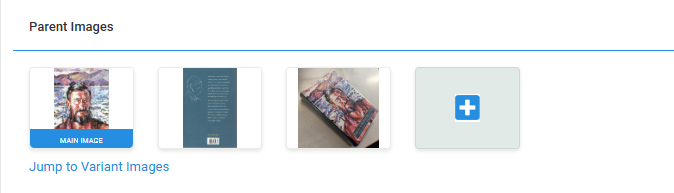
- Variant Images are in the Variant section - scroll down to access or click Jump to Variant Images
Add additional image(s)
- From the Product Details page, click the green and white + icon to open the image management window.
- Click Add Image.
- Enter or paste the URL of the image you want to add then click ADD
- Alternatively, click 'Browse files' or drag and dop.
- Click Add.
- The new image will appear at the end of the product’s image list.
- Reorder the image if it needs to appear in a different position.
- Click Accept to save changes or discard if you make a mistake.
The image URL should link directly to a publicly accessible image and should not require a login.
Reorder Images
- From the Product Details page, click on any image to open the image management window.
- Locate the image you want to move.
- Use the Left and Right arrows to move the image to the left or right.
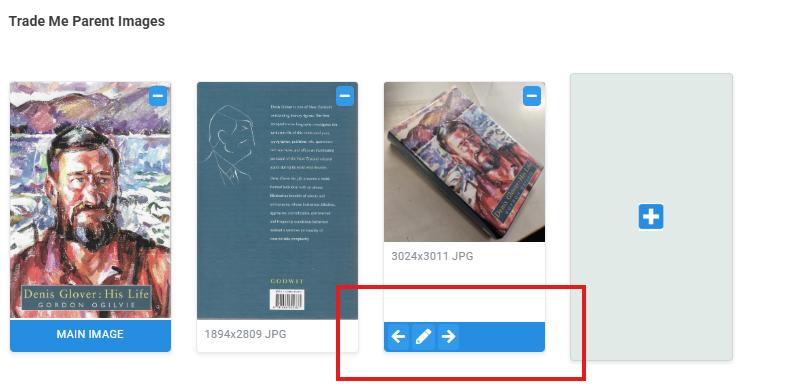
- Click Accept to save changes or discard if you make a mistake
Hero Images
- From the Product Details page, click on any image to open the image management window.
- Locate the image you want to move.
- Use the Left arrow to move the image to the far left position.
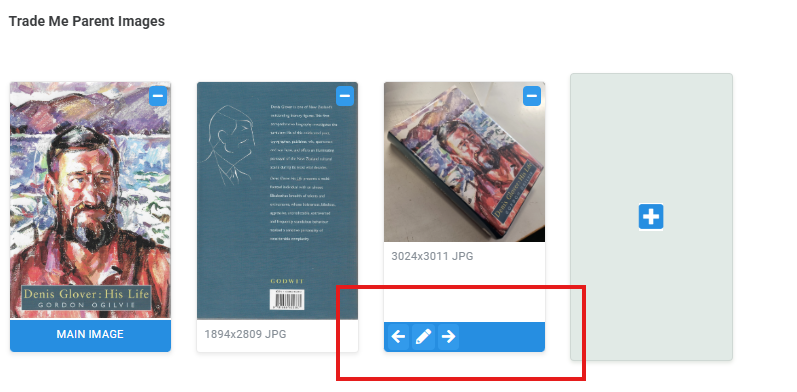
- Click Accept to save changes or discard if you make a mistake
Crop images
Cropping the image will simply cut the image downto the size you want.
- From the Product Details page, click on any image to open the image management window.
- Locate the image you want to crop and click the pencil icon to edit
- Drag the crop frame to select the part of the image you want to keep.
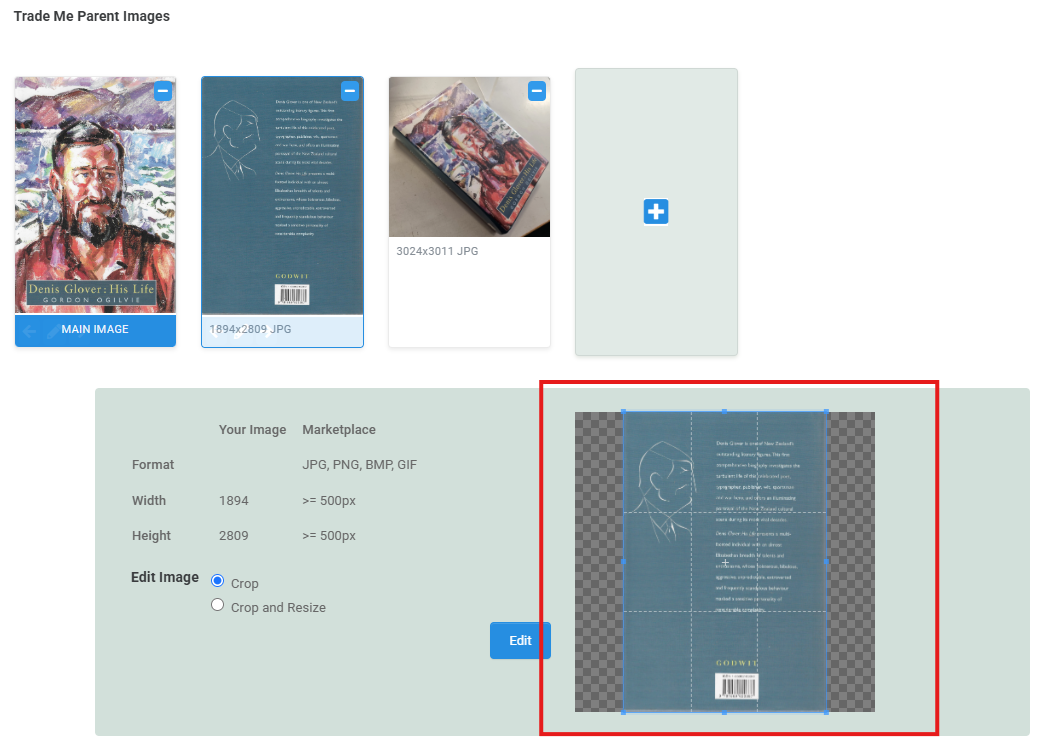
- Click Edit
- Click Apply to save changes or discard if you have made a mistake.
Crop and Resize images
Cropping and resizing the image will use the part of the image you have selected and then resize it to meet the maketplace requirements.
- From the Product Details page, click on any image to open the image management window.
- Locate the image you want to crop and click the pencil icon to edit
- Drag the crop frame to select the part of the image you want to keep.
- Select Crop and Resize
- Click Edit
- Click Apply to save changes or discard if you have made a mistake.
Remove images
- From the Product Details page, click the green and white + icon to open the image management window.
- Click the green and white minus icon.
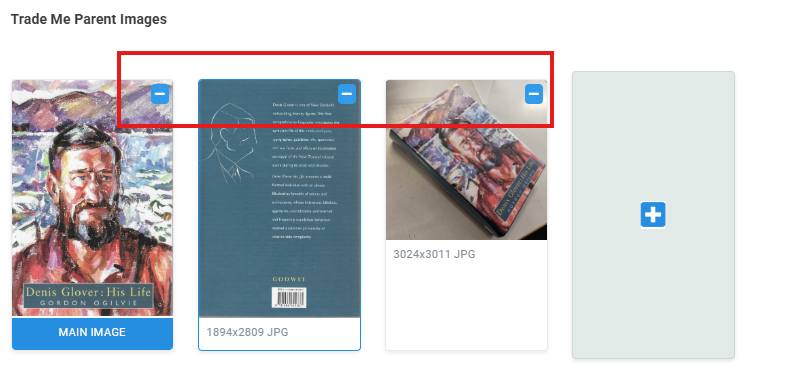
- Click Close and Accept to save. Discard if you don't want to save changes.
Send the changes to Trade Me
After completing your image changes:
- Review the hero image, image order and all edited images on the Trade Me tab.
- On the product details page there is an upload to Trade Me button. Use this or go to the dashboard and click 'Upload to Trade Me'
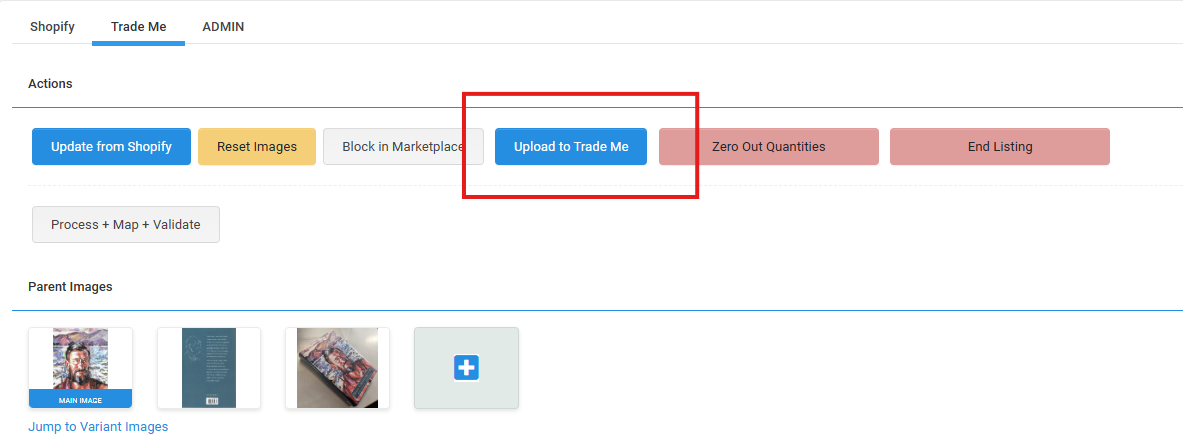
Existing Trade Runner workflows generally require the product to be uploaded after marketplace-specific changes are made. Trade Me may take additional time to process and display the new images.